Building observation forms
The Form Builder lets you design the data collection forms that field researchers fill out on their mobile devices. Every survey has one form template — build it carefully, because field teams rely on it offline.
Opening the form builder
From a survey detail page, click Form Builder. If the survey already has a template, it will load automatically. If not, you'll start with a blank canvas.
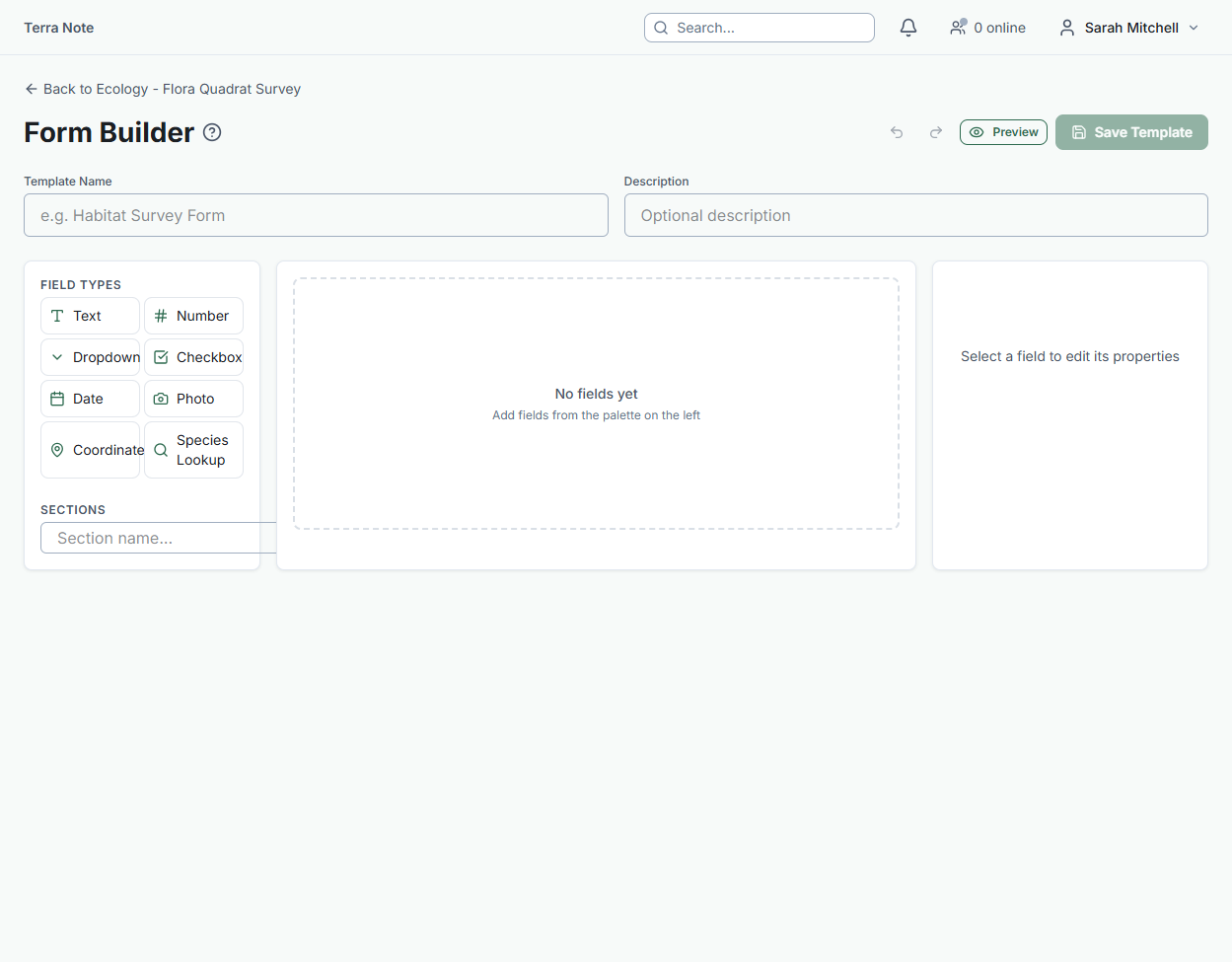
The three-panel layout
The builder has three columns:
- Left — Field palette & sections: Drag field types onto the canvas, and create named sections to group fields
- Centre — Canvas: Your form as it will appear on the mobile app. Click a field to select it.
- Right — Properties panel: Edit the selected field's label, help text, validation rules, and options
Field types
| Field | Best used for |
|---|---|
| Text | Notes, descriptions, condition comments |
| Number | DBH, height, count, depth |
| Dropdown | Vegetation type, context type, disturbance class |
| Checkbox | Presence/absence, yes/no, multi-select attributes |
| Date | Collection date, event date |
| Photo | Specimen photos, context photos, damage records |
| Coordinates | Secondary GPS points (primary is always auto-captured) |
| Species Lookup | Links observation to a taxon in the Species Register |
Hover over any field type button to see a description before adding it.
Sections
Use sections to group related fields — for example, "Site Conditions", "Species Details", and "Photo Record". To add a section:
- Type a section name in the Sections input in the left panel
- Click the folder icon or press Enter
- Drag fields into the section on the canvas, or select a field and change its section in the Properties panel
Field properties
Click any field on the canvas to open its properties:
- Label — The question as it appears on mobile
- Help text — Optional hint shown below the label in the field
- Required — Whether the field must be completed before the observation can be saved
- Options — For dropdown and checkbox fields, the list of choices
- Section — Which section this field belongs to
Undo and redo
Use Ctrl+Z / Ctrl+Shift+Z to undo and redo changes. Up to 50 actions are stored in history.
Previewing your form
Click Preview in the toolbar to see your form as it will appear on the mobile app. Use this to check field order, section groupings, and label clarity before saving.
Saving the template
Click Save Template. The form is immediately available to field researchers assigned to this survey. If the survey has already been synced to a device, the researcher will need to re-sync to get the updated template.
Tip: Keep forms as short as possible for field use. Every extra field is time spent in the field on data entry. Consider whether data can be captured by GPS or photo rather than a typed field.
Related Articles
- Survey methods — Configuring structured sampling methodologies
- Submitting observations — How field data collection works on mobile