Survey methods
Survey methods define how data is collected in the field — whether observers work freely across a site or follow a structured spatial grid. Choosing the right method ensures your sampling is defensible and your data is statistically valid.
Selecting a method
From a survey detail page, click Configure Method. The Method Setup Wizard walks you through four steps: select, configure, preview, and confirm.
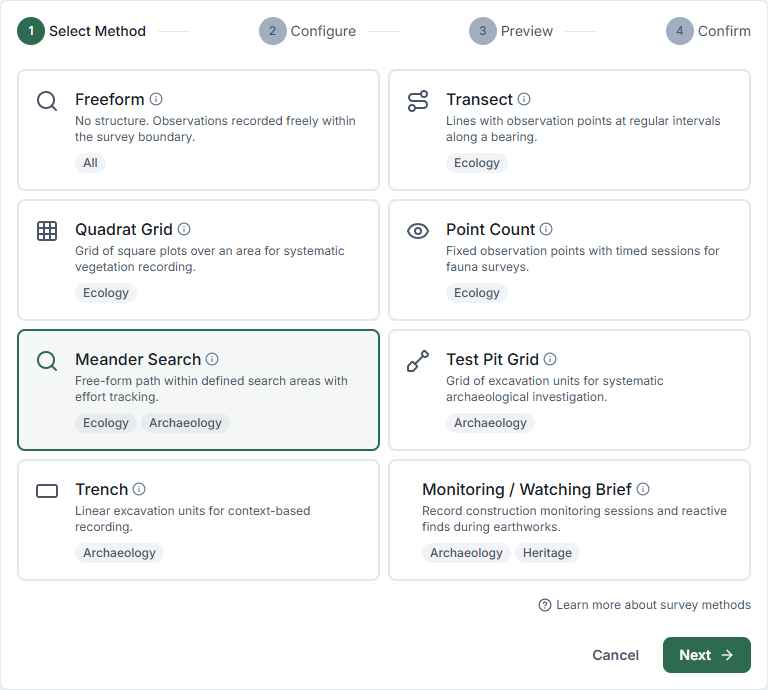
Tip: Hover the info icon next to each method name to see a brief description and best-use guidance before selecting.
Configuring a method — input modes
For most methods, you can choose how to define the sampling unit locations:
| Mode | Description |
|---|---|
| Enter manually | Type GPS coordinates directly — useful when you already have precise coordinates |
| Draw on map | Click on an interactive map to place start/end points or grid origins — easier than typing coordinates |
| Import from GIS layer | Pick an existing GIS layer (already uploaded to the survey or site) and convert its features to sampling units automatically |
| Generate parallel transects | For Transect surveys only — generates a full set of parallel transects inside a boundary polygon using bearing and spacing |
Draw on map
When you select Draw on map, a compact map appears inside the wizard. Click to set coordinates:
- Transect / Trench: First click sets the start point; second click sets the end point
- Grid methods: A single click sets the origin (south-west corner) of the grid
- Point count: Each click adds a new observation point to the list
A reference boundary (survey or site) is shown dimmed on the map to help you align units to the survey area.
Import from GIS layer
When you select Import from GIS layer, the wizard lists all GIS layers attached to the survey or its parent site. Select a layer and click Import Sampling Units.
For line layers (used with Transect and Meander Search): set the Interval (metres) to control the spacing of stops along each line.
For point layers (used with Point Count): set the Duration per point (minutes).
If no layers are listed, upload a GIS file from the map page first.
Generate parallel transects
Available for the Transect method only. This generates a complete grid of parallel transects inside a boundary polygon.
Configure:
- Boundary source — use the survey boundary or the site boundary as the clipping polygon
- Bearing (degrees) — direction the transect lines run (0° = north-south, 90° = east-west)
- Spacing between transects (metres) — lateral distance between parallel lines
- Point interval (metres) — distance between sampling stops along each transect
The wizard shows an estimated transect count before generating. Click Generate Transects to create all units and skip to the confirm step.
Available methods
Freeform
Observers record anywhere within the site boundary with no fixed sampling units. Suitable for:
- Reconnaissance surveys
- Opportunistic fauna spotting
- Cultural heritage walkover assessments
No configuration required. Choose Freeform and click Next to finish immediately.
Transect
A straight-line path divided into fixed-interval observation stops. Each stop becomes a sampling unit. Configure:
- Start and end coordinates — define the transect alignment (enter manually, draw on map, import from GIS, or generate parallel transects)
- Interval (metres) — spacing between stops (e.g. 10 m, 25 m, 50 m)
Best for: vegetation transects, fauna activity corridors, erosion monitoring.
Quadrat grid
A regular grid of fixed-size square plots. Configure:
- Origin point — the south-west corner of the grid
- Cell size (metres) — plot dimensions (e.g. 2×2, 5×5, 10×10)
- Rows and columns — grid extent
Best for: vegetation density, ground cover, stem counts, abundance estimates.
Point count
Fixed observation points with a timed counting period. Configure:
- Points — add one or more GPS-located observation points
- Duration (minutes) — the count period per point
Best for: bird surveys (standard 2-ha point count method, BBS protocol), bat activity monitoring.
Meander search
Systematic search across a defined area with a target effort rate in minutes per hectare. Configure:
- Search areas — named areas to be searched
- Target effort (min/ha) — the required search intensity
Best for: reptile, amphibian, and small mammal surveys; general fauna assessments; weed mapping.
Test pit grid
A regular grid of archaeological test excavations. Configure:
- Origin point — the south-west corner of the grid
- Spacing (metres) — distance between pit centres
- Rows and columns — grid extent
Best for: subsurface archaeological sampling, artefact density surveys, pre-development assessments.
Trench
A machine-cut linear excavation. Configure:
- Start and end coordinates — trench centreline
- Width (metres) — trench width
Best for: targeted archaeological investigation, service corridor assessments, detailed stratigraphic recording.
Sampling units
After configuration, click Generate Units to create the spatial sampling units. These appear on the survey map and are synced to mobile devices. Field researchers can navigate between units and record observations against each one.
To view and manage sampling units, go to the survey detail page and click Sampling Units.
Changing the method
You can reconfigure a method at any time before fieldwork begins. After data collection starts, changing the method will break the link between existing observations and their sampling units — check with your project lead before making changes.
Related Articles
- Building observation forms — Designing the data collection form for a survey
- Submitting observations — How field data collection works on mobile