Syncing data to mobile
TerraSitu's mobile app is designed to work offline for days at a time. Before heading to the field, sync your assigned surveys to download everything you need. When you return, sync again to upload your observations.
Before you leave for the field
- Open the TerraSitu mobile app
- Go to Sync in the bottom navigation
- Tap Download next to each survey you'll be working on
- Wait for the download to complete — check that the status shows Ready for fieldwork
A survey package includes:
- Your observation form template
- All GIS layers for the site
- Map tiles for the survey area (topographic, at configured zoom levels)
- Sampling units (if a structured method is configured)
- Any existing observations from other team members
Tip: Always sync before leaving an area with connectivity, even if you synced recently. Other team members may have added observations or the form template may have been updated.
Working offline
Once downloaded, everything works without connectivity:
- Open the survey and tap Add Observation
- Your GPS coordinates are captured automatically
- Fill in the form, attach photos, and save
- Observations are stored locally and queued for upload
The app shows a Sync pending indicator when you have unsynced changes.
Uploading after fieldwork
When you have connectivity:
- Open the Sync screen
- Tap Upload — all queued observations upload automatically
- Watch the progress — each observation shows its upload status
- Green tick = uploaded successfully
Failed uploads are retried automatically with exponential backoff. If an upload fails repeatedly, check the observation for any invalid data (e.g. a required field left blank).
Conflict resolution
If two people modify the same observation while offline, TerraSitu detects the conflict when both sync. You'll be shown both versions and prompted to choose which to keep, or to merge them manually.
Sync status on the web portal
The Sync Status page in the main navigation shows the sync state for all active surveys:
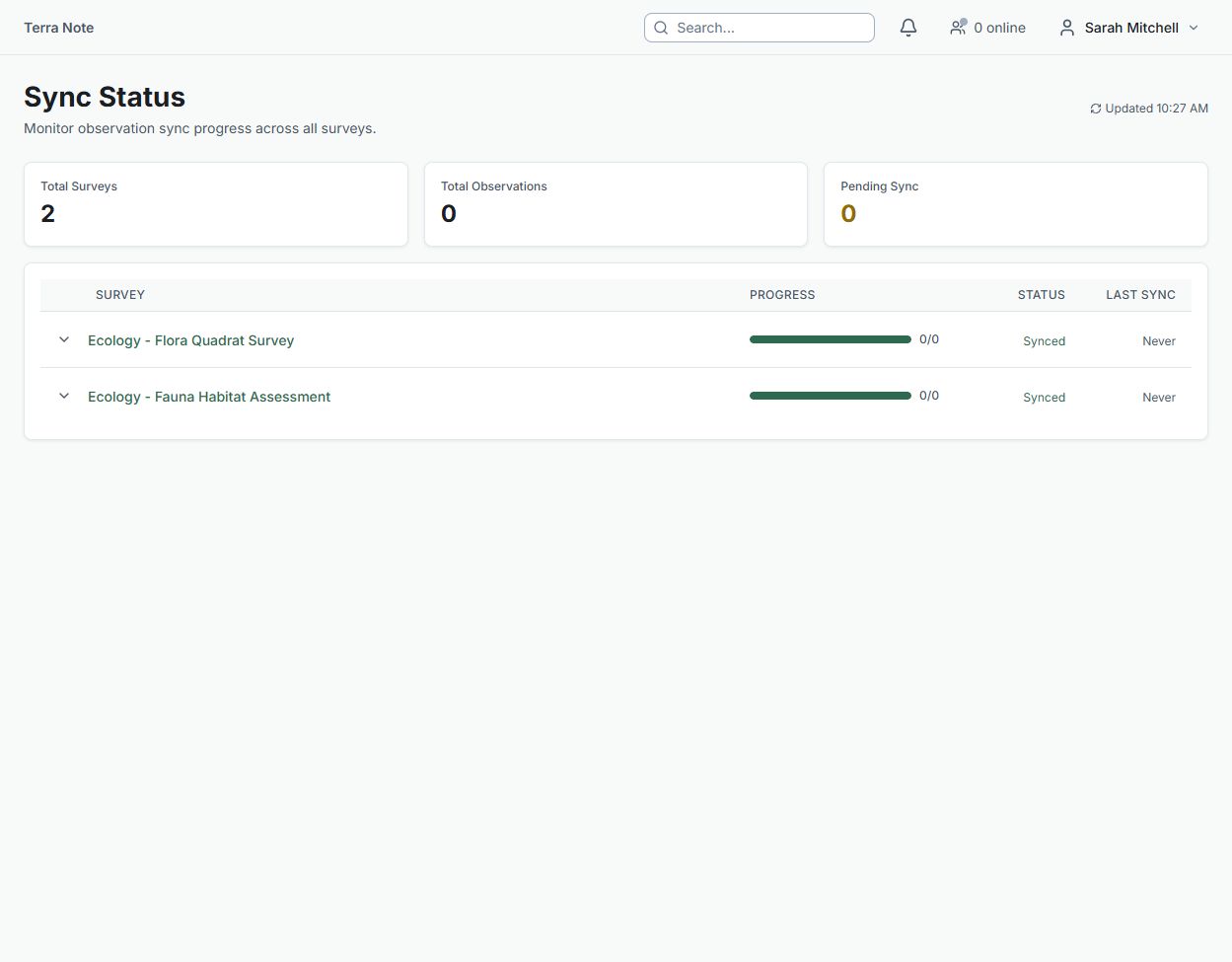
- Which devices have downloaded a survey package
- Pending observation uploads per device
- Last sync time per researcher
What isn't available offline
- Searching the Species Register (the full taxonomy list is bundled, but searches use the local copy)
- Generating reports
- Viewing other users' observations in real time
- Admin and settings pages
Automatic background sync
TerraSitu syncs your data automatically in the background — you don't need to manually trigger a sync after returning from the field.
How it works:
- Android: The app registers a background task that runs every 15 minutes when connected to any network. After returning from a remote site, sync typically resumes within 15 minutes of reconnecting.
- iOS: The server sends a silent wake signal to your device when a trip is activated or updated. Your device syncs in the background when it receives this signal.
- All platforms: Sync also triggers automatically when you open the app or when your device reconnects to a network.
Server-initiated sync: If your device has been inactive for more than 3 hours but you've had a trip in the last 14 days, the server will send a silent sync trigger automatically — even before you open the app.
Best results:
- On Android, exclude TerraSitu from battery optimisation (the app will show a banner if this isn't set up).
- Set Location permission to "Always" for GPS tracking during field surveys.
- Ensure Background App Refresh is enabled on iOS.
The app will show a warning banner on the home screen if any of these settings need attention.
Related Articles
- Submitting observations — Recording observations in the field
- Getting started with TerraSitu — Core workflow overview