Getting Started with TerraSitu
TerraSitu is a field mapping and note-taking platform designed for ecologists, archaeologists, and field survey professionals. This guide will help you get up and running.
Core Workflow
- Create a Project - Set up your project with client details, location, and team members
- Add Sites - Define the physical areas where fieldwork will take place
- Create Surveys - Configure surveys with form templates and assign them to field researchers
- Push to Devices - Sync survey packages to mobile devices for offline use
- Collect Data - Use the mobile app to capture observations, photos, and GPS data in the field
- Review & Report - Back in the office, review collected data, run QA checks, and generate reports
Your First Project
To create your first project:
- Navigate to Projects in the sidebar
- Click New Project
- Fill in the project details — name, client, start date, and project timezone
- Add sites by clicking Add Site on the project detail page
- Create surveys within each site
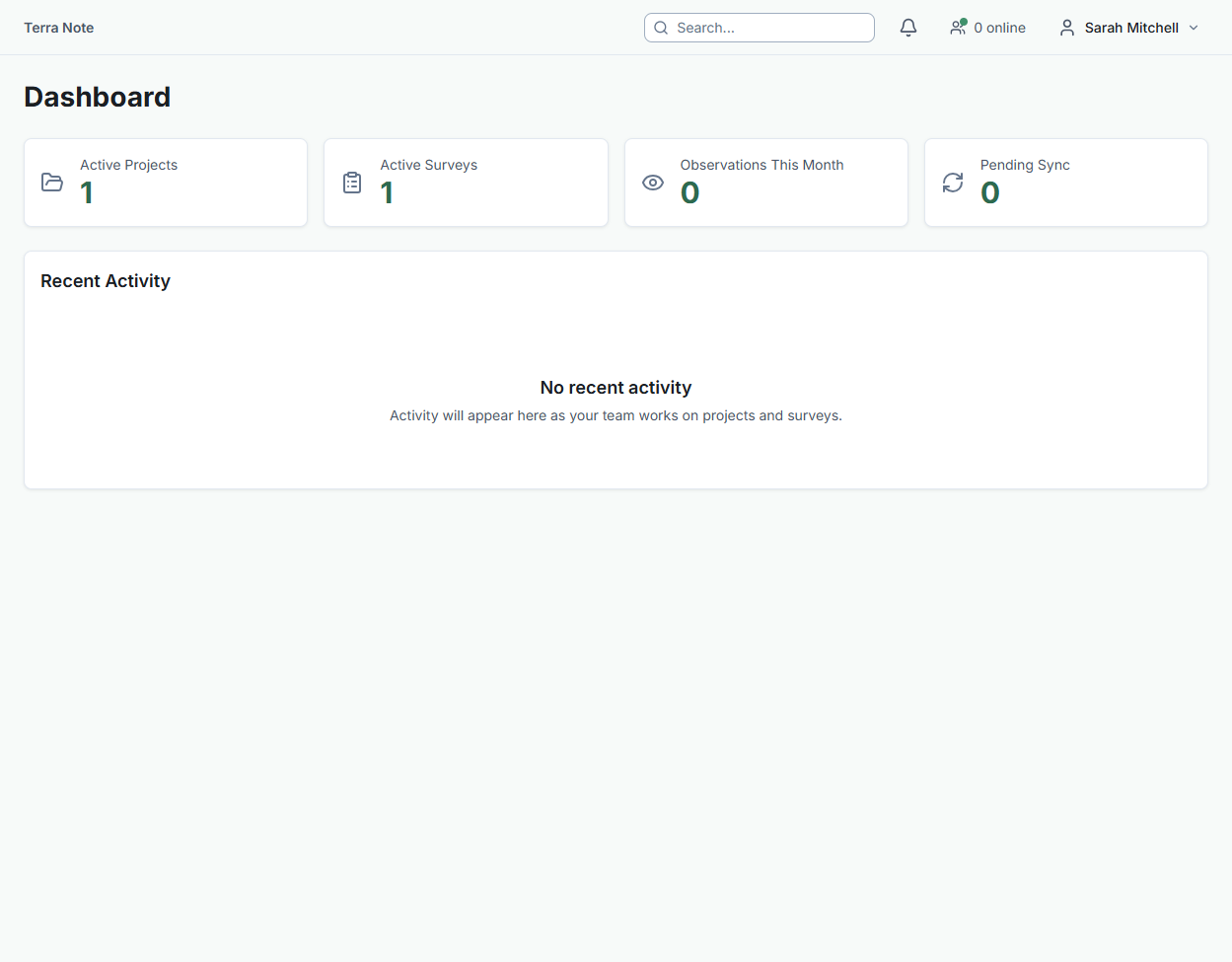
Understanding Your Dashboard
When you log in, the dashboard gives you a full picture of your organisation at a glance. Here's what each section shows:
- Hero stats — Active projects, active surveys, observations logged this month, and pending sync count. A pending sync count in amber means field devices have data waiting to upload.
- Field Trips — Current and upcoming trips with status, destination, personnel count, and the trip lead. Click any trip to view full logistics, contacts, and schedule.
- Project Progress — Your active and in-planning projects with timeline progress bars and status badges. The progress bar fills based on elapsed time between start and end date.
- Billable Hours — This month's time summary showing billable vs non-billable hours and total cost, visualised as a donut chart.
- Notifications — Unread notifications from across the platform. Use the "Mark all read" button to clear them at once.
- OHS Alerts — Recent safety incidents across all projects, colour-coded by severity (red for Critical, amber for Major/Moderate, grey for Minor/Near Miss).
- People in Field — Team members and their sync health status, updated every 30 seconds. A red dot means the member's sync is stale and may need attention.
- Team on the Map — Live locations of team members who have enabled location sharing in the mobile app. Click "Full view" to open the interactive team monitor.
Key Concepts
- Customer - Your client organisation. Projects are grouped under customers.
- Project - A body of work for a client, containing sites and surveys.
- Site - A physical location where fieldwork occurs. Has boundary data and GIS layers.
- Survey - A specific data collection activity within a site. Has form templates and can be assigned to team members.
- Observation - A single data point collected in the field — text, photos, GPS coordinates, and structured form data.
Signing in
You can sign in to TerraSitu with your email and password. If your organisation has Single Sign-On (SSO) configured, you may also see a "Sign in with [Provider]" button (e.g., "Sign in with Microsoft Entra ID") — this lets you authenticate through your organisation's identity system instead. See Signing in with SSO for details.
Next Steps
- Creating a Project - Detailed project setup guide
- Submitting Observations - How field data collection works
- Generating Reports - Creating reports from your data