How do I manage the photo register for an excavation?
Archaeological excavations require a rigorous photo register — a numbered log of every photograph taken, with location, subject, direction, and scale. TerraSitu's Photo Register automates the numbering and metadata capture, and generates a printable register for inclusion in formal reports.
How photos are captured in the field
When a field researcher adds a Photo field observation on mobile:
- The photo is automatically tagged with GPS coordinates, timestamp, and EXIF metadata
- The observation form captures directional data (if a compass field is included)
- Photos are stored against the sampling unit (test pit or trench) they were recorded in
For a complete photo register, your observation form should include:
- Photo — the image itself
- Dropdown — photo subject (Context surface, Section face, Finds in situ, Scale shot, General view)
- Dropdown — direction (N, NE, E, SE, S, SW, W, NW)
- Text — scale description (e.g. "1 m rod, 20 cm scale")
- Checkbox — north arrow visible in frame (yes/no)
Viewing the photo register
- Navigate to your Survey detail page
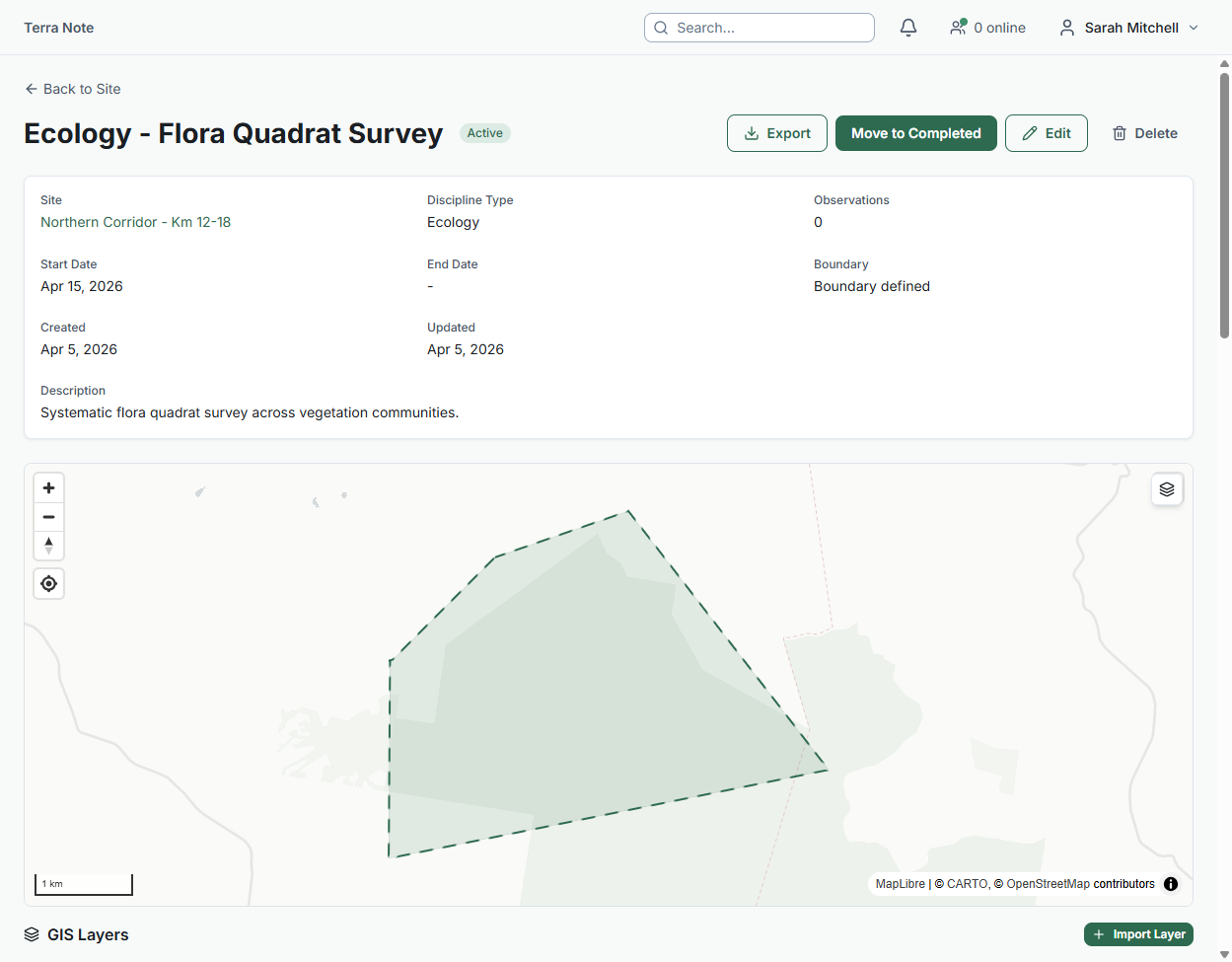 2. Click the Photo Register tab
The register shows all photos across the survey, automatically numbered sequentially. Each entry shows:
- Photo number
- Thumbnail
- Date and time
- GPS coordinates
- Sampling unit (test pit / trench reference)
- Observer
- Subject, direction, and scale (from the form fields)
Photos are numbered in the order they were taken (by timestamp), grouped by sampling unit.
Re-numbering and re-sequencing
If photos need to be re-ordered (e.g. a photo was taken out of sequence), drag the row to the correct position in the register. Numbers update automatically. Re-ordering only affects the register sequence — it does not change the original observation data.
Exporting the photo register
- From the Photo Register tab, click Export
- Choose your format:
- CSV — a flat table for import into Word or Excel report templates
- PDF — a formatted register ready for direct inclusion in reports, with thumbnails
The PDF export formats to A4 with thumbnail images in a grid layout, or as a table-only register (thumbnails excluded) for compact registers in large excavations.
Photo file naming
Exported photos are named using the pattern: [SurveyCode]-[PhotoNumber]-[Subject].[ext]
For example: EP-001-Context-Surface.jpg
The survey code is taken from the survey name — keep survey names short and code-like (e.g. "EP Stage 2 Excavation" → "EP-Stage-2-Excavation") or set a short code in the survey settings.
Keeping photos and observations linked
Every photo in the register is linked to its source observation. Click any photo in the register to open the full observation record, including the context or find it was associated with. This linkage is maintained in the CSV export via the observation_id column.
Tip: For large excavations, consider creating separate surveys for each area or phase (e.g. "Excavation Phase 1 — Area A") rather than one survey for the whole site. This keeps photo registers to a manageable size and makes it easier to assign recording to different team members.
Related Articles
- How do I record archaeological contexts and finds? — Setting up context recording forms
- Generating reports — Including the photo register in formal reports
- Building observation forms — Adding photo and directional fields to your form