How do I generate a species observation report?
Species observation reports compile all fauna and flora records from a survey into a structured summary suitable for client deliverables and regulatory submissions. This guide covers generating both a data export and a formatted PDF report.
Before generating a report
Make sure your observations are:
- Synced — all field data has been uploaded from mobile devices
- Reviewed — observations have been through QA Review and approved
- Complete — species lookups are linked to verified taxa, not free-text entries
Unapproved observations are excluded from reports by default.
Option A — Data export (CSV / GeoJSON / Shapefile)
For a raw species list or data for further analysis in Excel or GIS:
- Go to the Survey or Site detail page
- Click Export
- Select your format:
- CSV — flat table with all observation fields, species names, coordinates, and timestamps
- GeoJSON / Shapefile — spatial export with observation points and attributes
- KML — for Google Earth visualisation
- Click Download
The CSV export includes:
- Observation ID
- Species name (scientific and common)
- Taxonomy (kingdom, class, order, family, genus)
- Conservation status (EPBC, state legislation)
- Date and time (UTC and project timezone)
- GPS coordinates (decimal degrees and accuracy)
- All form fields
- Photo count and photo file names
- Reviewed by, approved at
Option B — PDF report
For a formatted report ready to send to a client:
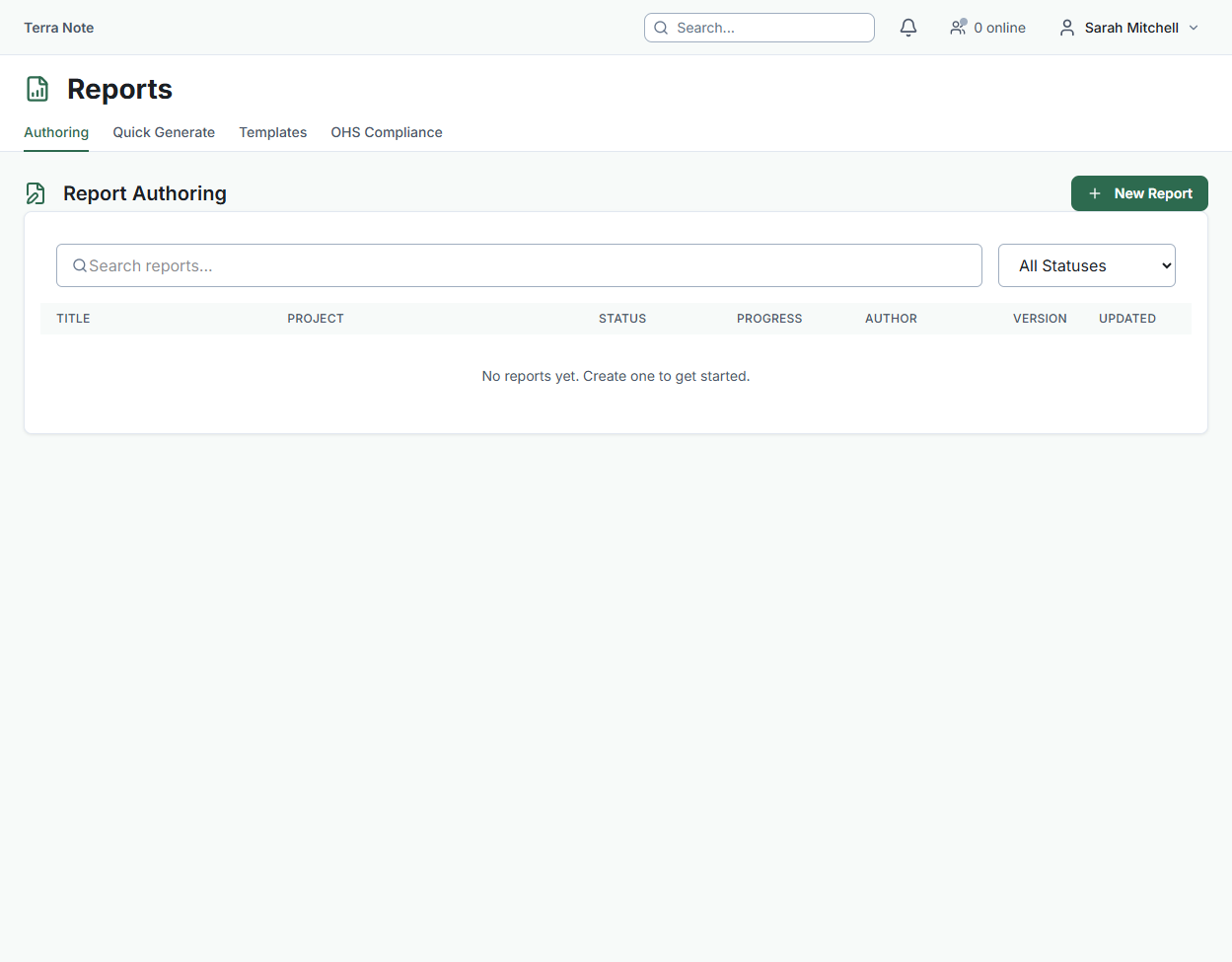
- Go to Reports in the sidebar
- Click New Report
- Select a template — use Ecological Survey Report for fauna/flora work
- Choose the project, site, and survey(s) to include
- Click Create
The report is built with auto-generated sections including:
- Species register — table of all taxa recorded, with conservation status
- Observation summary — count by survey, method, and observer
- Distribution maps — observation points plotted on site maps
- Photo register — all observation photos with metadata
For sections requiring narrative (methods, discussion, recommendations), the report editor lets you write directly or assign sections to team members.
- Review and edit narrative sections in the Report Editor
- Click Export to PDF when ready
Filtering by discipline or species group
In the CSV export, filter using the Species Group column. In the report template, you can configure which observation types to include — for a fauna-only report, exclude flora observations, and vice versa.
Conservation status flags
Species observations are automatically checked against the EPBC Act and state legislation lists. In CSV exports, the epbc_status and state_status columns will show "Endangered", "Vulnerable", "Critically Endangered", etc. where applicable. In PDF reports, these are highlighted in the species register table.
Tip: If a species shows as "Unknown" in the conservation status column, the species name may not have matched in the taxonomy database. Check the observation's species lookup field — free-text entries don't link to the taxonomy database and won't get status flags.
Related Articles
- Generating reports — Full reference for report types and the report editor
- QA review — Reviewing observations before reporting
- Building observation forms — Setting up species lookup fields in your form