How do I set up a transect survey for vegetation monitoring?
Transect surveys are one of the most common structured methods for vegetation assessment. This guide walks through setting up a belt transect in TerraSitu from project creation to first field observation.
What you'll need
- A project and site already created in TerraSitu
- The start and end GPS coordinates for your transect (decimal degrees)
- Your transect interval (the spacing between observation stops, in metres)
Step 1 — Create the survey
- Open your site detail page and click Add Survey
- Name the survey (e.g. "Transect 1 — Eucalypt Woodland Belt")
- Set the start date and assign the field researcher(s)
- Click Create
Step 2 — Configure the transect method
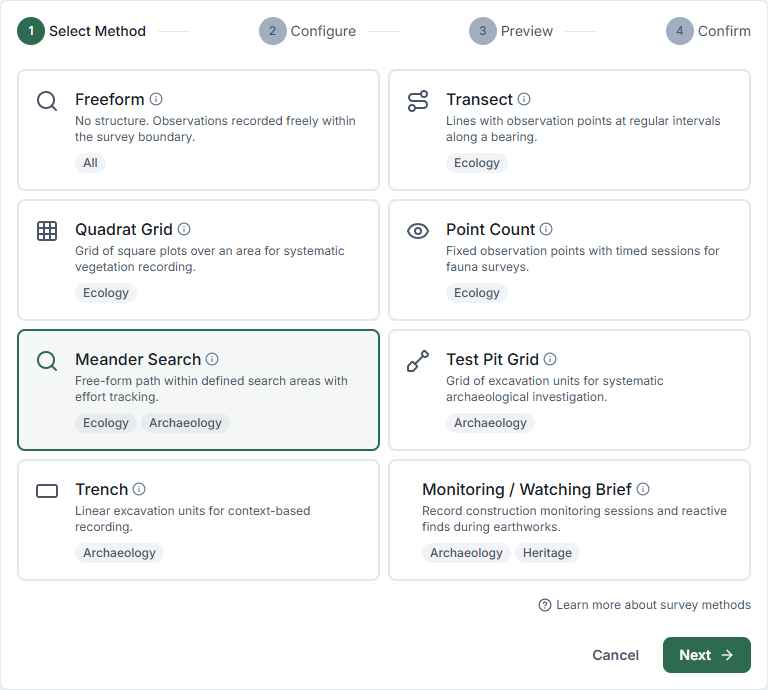
- On the survey detail page, click Configure Method
- Select Transect and click Next
- Choose how to define your transect coordinates:
- Enter manually — type coordinates directly if you have them
- Draw on map — click the start and end points on an interactive map
- Import from GIS layer — select an existing line layer to convert to transect units
- Generate parallel transects — fill a boundary with evenly-spaced parallel transects automatically
- Enter the transect label, coordinates or select a layer, and set the Interval (metres) — typically 10 m, 25 m, or 50 m
- Click Next to preview the configuration, then Generate Units
TerraSitu calculates the number of stops and creates a sampling unit for each one.
Step 3 — Build the observation form
- Click Form Builder on the survey detail page
- Add fields relevant to your vegetation protocol. A typical belt transect form includes:
- Species Lookup — flora species recorded at the stop
- Dropdown — growth form (tree, shrub, herb, grass, sedge, fern, etc.)
- Number — cover percentage or abundance class
- Number — height (metres)
- Dropdown — condition class (e.g. Excellent, Good, Fair, Poor, Dead)
- Checkbox — reproductive status (flowering, fruiting, seeding)
- Text — notes
- Photo — specimen or habit photo
- Organise fields into sections: "Species Record", "Condition", "Notes"
- Click Save Template
Step 4 — Sync to mobile
- Open the TerraSitu mobile app and go to Sync
- Find the survey and tap Download
- Wait for the package to complete — you'll see the transect stops on the map
Step 5 — In the field
- Navigate to your first transect stop using the map
- Tap Add Observation — your GPS coordinates are automatically captured
- Complete the form for each species recorded at that stop
- Move to the next stop and repeat
- Add multiple observations per stop as needed — one per species is standard
Step 6 — After fieldwork
- Sync your observations when you have connectivity
- Go to QA Review and review each observation for completeness
- Approve or flag observations before generating your report
Tip: If your protocol requires a fixed-width belt (e.g. 10 m wide), note the belt width in the survey description or add a text field to the form. TerraSitu records the transect centreline — belt width is a survey design parameter recorded in your methodology, not a spatial constraint in the system.
Related Articles
- Survey methods — Full reference for all survey method types
- Building observation forms — Designing your data collection form
- Syncing data to mobile — Preparing devices for offline fieldwork